Introduction


In this post I will explain how to implement simple login form using asp.net and I will explain how to Check Username and Password Exists in database using asp.net .

Description: 

One day I got mail from one of the reader he has asked about how to implement simple login form to check username and password details of user in database. If user details exist in database then we need to redirect user to welcome page otherwise we need to display “Invalid Username/Password”. Mostly it’s common for all the websites before access the website. I know that many of them feel it’s very easy but for the people who have started learning .NET they don’t know how to implement this because of that I decided to write post to help for the persons who is in need with this requirement. 

To implement this one first design table like this

ColumnName
DataType
UserId
Int(set identity property=true)
UserName
varchar(50)
Password
varchar(50)
FirstName
varchar(50)
LastName
varchar(50)

After completion of table creation enter some dummy data or use this link to create user registration form to insert userdetails in database.

Once data entered in table design your aspx page like this

<html xmlns="http://www.w3.org/1999/xhtml">
<head runat="server">
<title>Login Form</title>
</head>
<body>
<form id="form1" runat="server">
<div>
<table>
<tr>
<td>
Username:
</td>
<td>
<asp:TextBox ID="txtUserName" runat="server"/>
<asp:RequiredFieldValidator ID="rfvUser" ErrorMessage="Please enter Username" ControlToValidate="txtUserName" runat="server" />
</td>
</tr>
<tr>
<td>
Password:
</td>
<td>
<asp:TextBox ID="txtPWD" runat="server" TextMode="Password"/>
<asp:RequiredFieldValidator ID="rfvPWD" runat="server" ControlToValidate="txtPWD" ErrorMessage="Please enter Password"/>
</td>
</tr>
<tr>
<td>
</td>
<td>
<asp:Button ID="btnSubmit" runat="server" Text="Submit" onclick="btnSubmit_Click" />
</td>
</tr>
</table>
</div>
</form>
</body>
</html>
After that add the following namespaces in code behind

C# Code
using System;
using System.Data;
using System.Data.SqlClient;
using System.Configuration;
After add namespaces write the following code in code behind
protected void btnSubmit_Click(object sender, EventArgs e)
{
SqlConnection con = new SqlConnection(ConfigurationManager.ConnectionStrings["dbconnection"].ConnectionString);
con.Open();
SqlCommand cmd = new SqlCommand("select * from UserInformation where UserName =@username and Password=@password",con);
cmd.Parameters.AddWithValue("@username", txtUserName.Text);
cmd.Parameters.AddWithValue("@password", txtPWD.Text);
SqlDataAdapter da = new SqlDataAdapter(cmd);
DataTable dt = new DataTable();
da.Fill(dt);
if(dt.Rows.Count>0)
{
Response.Redirect("Details.aspx");
}
else
{
ClientScript.RegisterStartupScript(Page.GetType(), "validation", "<script language='javascript'>alert('Invalid Username and Password')</script>");
}
}

VB.NET Code
Imports System.Data
Imports System.Data.SqlClient
Imports System.Configuration
Partial Class _Default
Inherits System.Web.UI.Page
Protected Sub Page_Load(ByVal sender As Object, ByVal e As EventArgs)
End Sub
Protected Sub btnSubmit_Click(ByVal sender As Object, ByVal e As EventArgs)
Dim con As New SqlConnection(ConfigurationManager.ConnectionStrings("dbconnection").ConnectionString)
con.Open()
Dim cmd As New SqlCommand("select * from UserInformation where UserName =@username and Password=@password", con)
cmd.Parameters.AddWithValue("@username", txtUserName.Text)
cmd.Parameters.AddWithValue("@password", txtPWD.Text)
Dim da As New SqlDataAdapter(cmd)
Dim dt As New DataTable()
da.Fill(dt)
If dt.Rows.Count > 0 Then
Response.Redirect("Details.aspx")
Else
ClientScript.RegisterStartupScript(Page.[GetType](), "validation", "<script language='javascript'>alert('Invalid Username and Password')</script>")
End If
End Sub
End Class

Here don’t forgot to set the connection string in web.config file here I am getting database connection from web.config file for that reason you need to set the connectionstring in web.config file like this
<connectionStrings>
<add name="dbconnection" connectionString="Data Source=YogeshSharma;Integrated Security=true;Initial Catalog=MySampleDB"/>
</connectionStrings>


Demo


General Page Life-Cycle Stages

In general terms, the page goes through the stages outlined in the following table. In addition to the page life-cycle stages, there are application stages that occur before and after a request but are not specific to a page. For more information, see Introduction to the ASP.NET Application Life Cycle and ASP.NET Application Life Cycle Overview for IIS 7.0.
Some parts of the life cycle occur only when a page is processed as a postback. For postbacks, the page life cycle is the same during a partial-page postback (as when you use an UpdatePanel control) as it is during a full-page postback.
StageDescription
Page requestThe page request occurs before the page life cycle begins. When the page is requested by a user, ASP.NET determines whether the page needs to be parsed and compiled (therefore beginning the life of a page), or whether a cached version of the page can be sent in response without running the page.
StartIn the start stage, page properties such as Request and Response are set. At this stage, the page also determines whether the request is a postback or a new request and sets the IsPostBack property. The page also sets the UICulture property.
InitializationDuring page initialization, controls on the page are available and each control's UniqueID property is set. A master page and themes are also applied to the page if applicable. If the current request is a postback, the postback data has not yet been loaded and control property values have not been restored to the values from view state.
LoadDuring load, if the current request is a postback, control properties are loaded with information recovered from view state and control state.
Postback event handlingIf the request is a postback, control event handlers are called. After that, the Validate method of all validator controls is called, which sets the IsValid property of individual validator controls and of the page. (There is an exception to this sequence: the handler for the event that caused validation is called after validation.)
RenderingBefore rendering, view state is saved for the page and all controls. During the rendering stage, the page calls the Render method for each control, providing a text writer that writes its output to the OutputStream object of the page's Response property.
UnloadThe Unload event is raised after the page has been fully rendered, sent to the client, and is ready to be discarded. At this point, page properties such as Response and Request are unloaded and cleanup is performed.
Within each stage of the life cycle of a page, the page raises events that you can handle to run your own code. For control events, you bind the event handler to the event, either declaratively using attributes such as onclick, or in code.
Pages also support automatic event wire-up, meaning that ASP.NET looks for methods with particular names and automatically runs those methods when certain events are raised. If the AutoEventWireup attribute of the @ Page directive is set to true, page events are automatically bound to methods that use the naming convention of Page_event, such as Page_Load and Page_Init. For more information on automatic event wire-up, see ASP.NET Web Server Control Event Model.
The following table lists the page life-cycle events that you will use most frequently. There are more events than those listed; however, they are not used for most page-processing scenarios. Instead, they are primarily used by server controls on the ASP.NET Web page to initialize and render themselves. If you want to write custom ASP.NET server controls, you need to understand more about these events. For information about creating custom controls, see Developing Custom ASP.NET Server Controls.
Page EventTypical Use
PreInitRaised after the start stage is complete and before the initialization stage begins.
Use this event for the following:
  • Check the IsPostBack property to determine whether this is the first time the page is being processed. The IsCallback and IsCrossPagePostBack properties have also been set at this time.
  • Create or re-create dynamic controls.
  • Set a master page dynamically.
  • Set the Theme property dynamically.
  • Read or set profile property values.
    NoteNote
    If the request is a postback, the values of the controls have not yet been restored from view state. If you set a control property at this stage, its value might be overwritten in the next event.
InitRaised after all controls have been initialized and any skin settings have been applied. The Init event of individual controls occurs before the Init event of the page.
Use this event to read or initialize control properties.
InitCompleteRaised at the end of the page's initialization stage. Only one operation takes place between the Init and InitComplete events: tracking of view state changes is turned on. View state tracking enables controls to persist any values that are programmatically added to the ViewState collection. Until view state tracking is turned on, any values added to view state are lost across postbacks. Controls typically turn on view state tracking immediately after they raise their Init event.
Use this event to make changes to view state that you want to make sure are persisted after the next postback.
PreLoadRaised after the page loads view state for itself and all controls, and after it processes postback data that is included with the Request instance.
LoadThe Page object calls the OnLoad method on the Page object, and then recursively does the same for each child control until the page and all controls are loaded. The Load event of individual controls occurs after the Load event of the page.
Use the OnLoad event method to set properties in controls and to establish database connections.
Control eventsUse these events to handle specific control events, such as a Button control's Click event or a TextBox control's TextChanged event.
NoteNote
In a postback request, if the page contains validator controls, check the IsValid property of the Page and of individual validation controls before performing any processing.
LoadCompleteRaised at the end of the event-handling stage.
Use this event for tasks that require that all other controls on the page be loaded.
PreRenderRaised after the Page object has created all controls that are required in order to render the page, including child controls of composite controls. (To do this, the Page object calls EnsureChildControls for each control and for the page.)
The Page object raises the PreRender event on the Page object, and then recursively does the same for each child control. The PreRender event of individual controls occurs after the PreRender event of the page.
Use the event to make final changes to the contents of the page or its controls before the rendering stage begins.
PreRenderCompleteRaised after each data bound control whose DataSourceID property is set calls its DataBind method. For more information, see Data Binding Events for Data-Bound Controls later in this topic.
SaveStateCompleteRaised after view state and control state have been saved for the page and for all controls. Any changes to the page or controls at this point affect rendering, but the changes will not be retrieved on the next postback.
RenderThis is not an event; instead, at this stage of processing, the Page object calls this method on each control. All ASP.NET Web server controls have a Render method that writes out the control's markup to send to the browser.
If you create a custom control, you typically override this method to output the control's markup. However, if your custom control incorporates only standard ASP.NET Web server controls and no custom markup, you do not need to override the Render method. For more information, see Developing Custom ASP.NET Server Controls.
A user control (an .ascx file) automatically incorporates rendering, so you do not need to explicitly render the control in code.
UnloadRaised for each control and then for the page.
In controls, use this event to do final cleanup for specific controls, such as closing control-specific database connections.
For the page itself, use this event to do final cleanup work, such as closing open files and database connections, or finishing up logging or other request-specific tasks.
NoteNote
During the unload stage, the page and its controls have been rendered, so you cannot make further changes to the response stream. If you attempt to call a method such as the Response.Write method, the page will throw an exception.
Individual ASP.NET server controls have their own life cycle that is similar to the page life cycle. For example, a control's Init and Load events occur during the corresponding page events.
Although both Init and Load recursively occur on each control, they happen in reverse order. The Init event (and also the Unload event) for each child control occur before the corresponding event is raised for its container (bottom-up). However the Load event for a container occurs before the Load events for its child controls (top-down). Master pages behave like child controls on a page: the master page Init event occurs before the page Init and Load events, and the master page Load event occurs after the page Init and Load events.
When you create a class that inherits from the Page class, in addition to handling events raised by the page, you can override methods from the page's base class. For example, you can override the page's InitializeCulture method to dynamically set culture information. Note that when an event handler is created using the Page_event syntax, the base implementation is implicitly called and therefore you do not need to call it in your method. For example, the base page class's OnLoad method is always called, whether you create a Page_Load method or not. However, if you override the page OnLoad method with the override keyword (Overrides in Visual Basic), you must explicitly call the base method. For example, if you override the OnLoad method on the page, you must call base.Load (MyBase.Load in Visual Basic) in order for the base implementation to be run.
The following illustration shows some of the most important methods of the Page class that you can override in order to add code that executes at specific points in the page life cycle. (For a complete list of page methods and events, see the Page class.) The illustration also shows how these methods relate to page events and to control events. The sequence of methods and events in the illustration is from top to bottom, and within each row from left to right.
ASP.NET Page Life Cycle Diagram
If controls are created dynamically at run time or declaratively within templates of data-bound controls, their events are initially not synchronized with those of other controls on the page. For example, for a control that is added at run time, the Init and Load events might occur much later in the page life cycle than the same events for controls created declaratively. Therefore, from the time that they are instantiated, dynamically added controls and controls in templates raise their events one after the other until they have caught up to the event during which it was added to the Controls collection.
To help you understand the relationship between the page life cycle and data binding events, the following table lists data-related events in data-bound controls such as the GridView, DetailsView, and FormView controls.
Control EventTypical Use
DataBindingRaised after the control's PreRender event, which occurs after the page's PreRender event. (This applies to controls whose DataSourceID property is set declaratively. Otherwise the event happens when you call the control's DataBind method.)
This event marks the beginning of the process that binds the control to the data. Use this event to manually open database connections, if required, and to set parameter values dynamically before a query is run.
RowCreated (GridView only) or ItemCreated (DataList, DetailsView, SiteMapPath, DataGrid, FormView, Repeater, and ListView controls)Raised after the control's DataBinding event.
Use this event to manipulate content that is not dependent on data binding. For example, at run time, you might programmatically add formatting to a header or footer row in a GridView control.
RowDataBound (GridView only) or ItemDataBound (DataList, SiteMapPath, DataGrid, Repeater, and ListView controls)Raised after the control's RowCreated or ItemCreated event.
When this event occurs, data is available in the row or item, so you can format data or set the FilterExpression property on child data source controls in order to display related data within the row or item.
DataBoundRaised at the end of data-binding operations in a data-bound control. In a GridView control, data binding is complete for all rows and any child controls.
Use this event to format data-bound content or to initiate data binding in other controls that depend on values from the current control's content. (For more information, see Catch-Up Events for Added Controls earlier in this topic.)

Nested Data-Bound Controls

If a child control has been data bound, but its container control has not yet been data bound, the data in the child control and the data in its container control can be out of sync. This is true particularly if the data in the child control performs processing based on a data-bound value in the container control.
For example, suppose you have a GridView control that displays a company record in each row, and it displays a list of the company officers in a ListBox control. To fill the list of officers, you would bind the ListBox control to a data source control (such as SqlDataSource) that retrieves the company officer data using the company ID in a query.
If the ListBox control's data-binding properties, such as DataSourceID and DataMember, are set declaratively, the ListBox control will try to bind to its data source during the containing row's DataBinding event. However, the CompanyID field of the row does not contain a value until the GridView control's RowDataBound event occurs. In this case, the child control (the ListBox control) is bound before the containing control (the GridView control) is bound, so their data-binding stages are out of sync.
To avoid this condition, put the data source control for the ListBox control in the same template item as the ListBox control itself, and do not set the data binding properties of the ListBox declaratively. Instead, set them programmatically at run time during the RowDataBound event, so that the ListBox control does not bind to its data until the CompanyID information is available.
For more information, see Binding to Data Using a Data Source Control.
The Login control can use settings in the Web.config file to manage membership authentication automatically. However, if your application requires you to customize how the control works, or if you want to understand how Login control events relate to the page life cycle, you can use the events listed in the following table.
Control EventTypical Use
LoggingInRaised during a postback, after the page's LoadComplete event has occurred. This event marks the beginning of the login process.
Use this event for tasks that must occur prior to beginning the authentication process.
AuthenticateRaised after the LoggingIn event.
Use this event to override or enhance the default authentication behavior of a Login control.
LoggedInRaised after the user name and password have been authenticated.
Use this event to redirect to another page or to dynamically set the text in the control. This event does not occur if there is an error or if authentication fails.
LoginErrorRaised if authentication was not successful.
Use this event to set text in the control that explains the problem or to direct the user to a different page.
DateHistoryReason
May 2011Added note about event order in master pages.Content bug fix.

Ajax updatepanel example with triggers in asp.net

March 14, 2013 |

Introduction:


In this article I will explain what is Ajax updatepanel control, advantages of updatepanel control and how to use multiple updatepanels in asp.net.

Description:

Previously I explained many articles relating to 
Ajax. Now I will explain what is ajax updatepanel control and use of ajax updatepanel control in asp.net.
During work with our applications if we entered any values in textbox controls and click on a button in form we will see full postback of our page and we will lost all the controls values whatever we entered previously this happend because of postback. If we want to avoid this full postback of page and round trip to server we need to write much code instead of writing much code we can use ajax updatepanel control.
Ajax updatepanel will help us to avoid full postback of the page i.e., avoid refresh of the whole page content with postback and stop flickering of the page which is associated with a postback and allows only partial postbacks. By using Ajax updatepanel we can refresh only required part of page instead of refreshing whole page.
Ajax updatepanel contains property called UpdateMode this property is used to specify whether UpdatePanel is always refreshed during a partial render or if it refresh only when a particular trigger hit. By default updatepanel contains UpdateMode="Always" if we want to set it conditionally we need to change this property UpdateMode="Conditional"
Ajax updatepanel control contains two child tags those are ContentTemplate and Triggers.
ContentTemplate is used to hold the content of the page means suppose we designed page with some controls we will place controls inside of the ContentTemplate
Triggers we used in a situation like need to refresh updatepanel only whenever I click some button control in that situation I will define those controls with this Triggers child tag.
Our Sample update panel control will be like this
<asp:UpdatePanel ID="UpdatePanel2" runat="server"
 UpdateMode="Conditional">
 <ContentTemplate>
 <asp:Label ID="Label2" runat="server"
 ForeColor="red" />
……………………………………………………..
………………………………………………………
……………………………………………………….
 </ContentTemplate>
 <Triggers>
 <asp:AsyncPostBackTrigger ControlID="Button1"
 EventName="Click" />
</Triggers>
 </asp:UpdatePanel>
Now we will create one sample application with updatepanels for that first create application and design your aspx page will be likes this
<html xmlns="http://www.w3.org/1999/xhtml" >
 <head id="Head1" runat="server">
 <title>UpdatePanel Example in asp.net</title>
 </head>
 <body>
 <form id="form1" runat="server">
 <asp:ScriptManager ID="ScriptManager1" runat="server"/>
 <div>
 <asp:UpdatePanel ID="UpdatePanel1" runat="server" UpdateMode="Conditional">
 <ContentTemplate>
 <fieldset style="width:30%">
 <legend>Update Panel-1</legend>
 <asp:Label ID="lbl1" runat="server" ForeColor="green"/><br />
 <asp:Button ID="btnUpdate1" runat="server" Text="Update Both Panels" OnClick="btnUpdate1_Click" />
 <asp:Button ID="btnUpdate2" runat="server" Text="Update This Panel" OnClick="btnUpdate2_Click" />
 </fieldset>
 </ContentTemplate>
 </asp:UpdatePanel>
 <asp:UpdatePanel ID="UpdatePanel2" runat="server" UpdateMode="Conditional">
 <ContentTemplate>
 <fieldset style="width:30%">
 <legend>Update Panel-2</legend>
  <asp:Label ID="lbl2" runat="server" ForeColor="red" />
  </fieldset>
 </ContentTemplate>
 <Triggers>
 <asp:AsyncPostBackTrigger ControlID="btnUpdate1" EventName="Click" />
 </Triggers>
 </asp:UpdatePanel>
 </div>
 </form>
 </body>
</html>
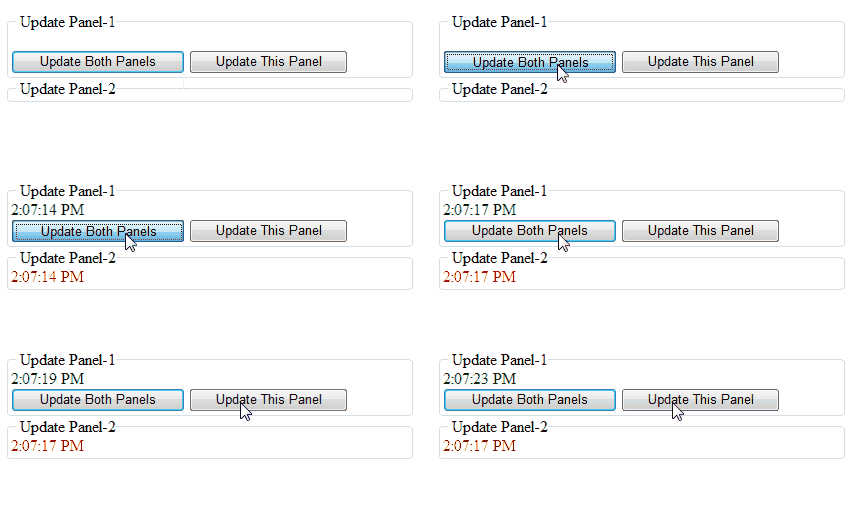
If you observe above code in UpdatePanel2 I defined Triggers property with btnUpdate1. Here UpdatePanel2 content will update only whenever we click on btnUpdate1 because we defined UpdatePanel2 property UpdateMode="Conditional" and we set AsyncPostBackTrigger property with btnUpdate1
Write following code in code behind
C#.NET
protected void btnUpdate1_Click(object sender, EventArgs e)
{
lbl1.Text = DateTime.Now.ToLongTimeString();
lbl2.Text = DateTime.Now.ToLongTimeString();
}
protected void btnUpdate2_Click(object sender, EventArgs e)
{
lbl1.Text = DateTime.Now.ToLongTimeString();
lbl2.Text = DateTime.Now.ToLongTimeString();
}
VB Code
Inherits System.Web.UI.Page
Protected Sub Page_Load(ByVal sender As Object, ByVal e As EventArgs)
End Sub
Protected Sub btnUpdate1_Click(ByVal sender As Object, ByVal e As EventArgs)
lbl1.Text = DateTime.Now.ToLongTimeString()
lbl2.Text = DateTime.Now.ToLongTimeString()
End Sub
Protected Sub btnUpdate2_Click(ByVal sender As Object, ByVal e As EventArgs)
lbl1.Text = DateTime.Now.ToLongTimeString()
lbl2.Text = DateTime.Now.ToLongTimeString()
End Sub


DEMO